📚 Kindle
Lazy supports Kindle syncing which enables you to sync all of your highlights and notes you take on Kindle books to your Lazy database. This is incredibly powerful to build upon the insights you capture while reading.
In order to sync from Kindle, simply go to your Settings (⌘ + Comma), navigate to Kindle.
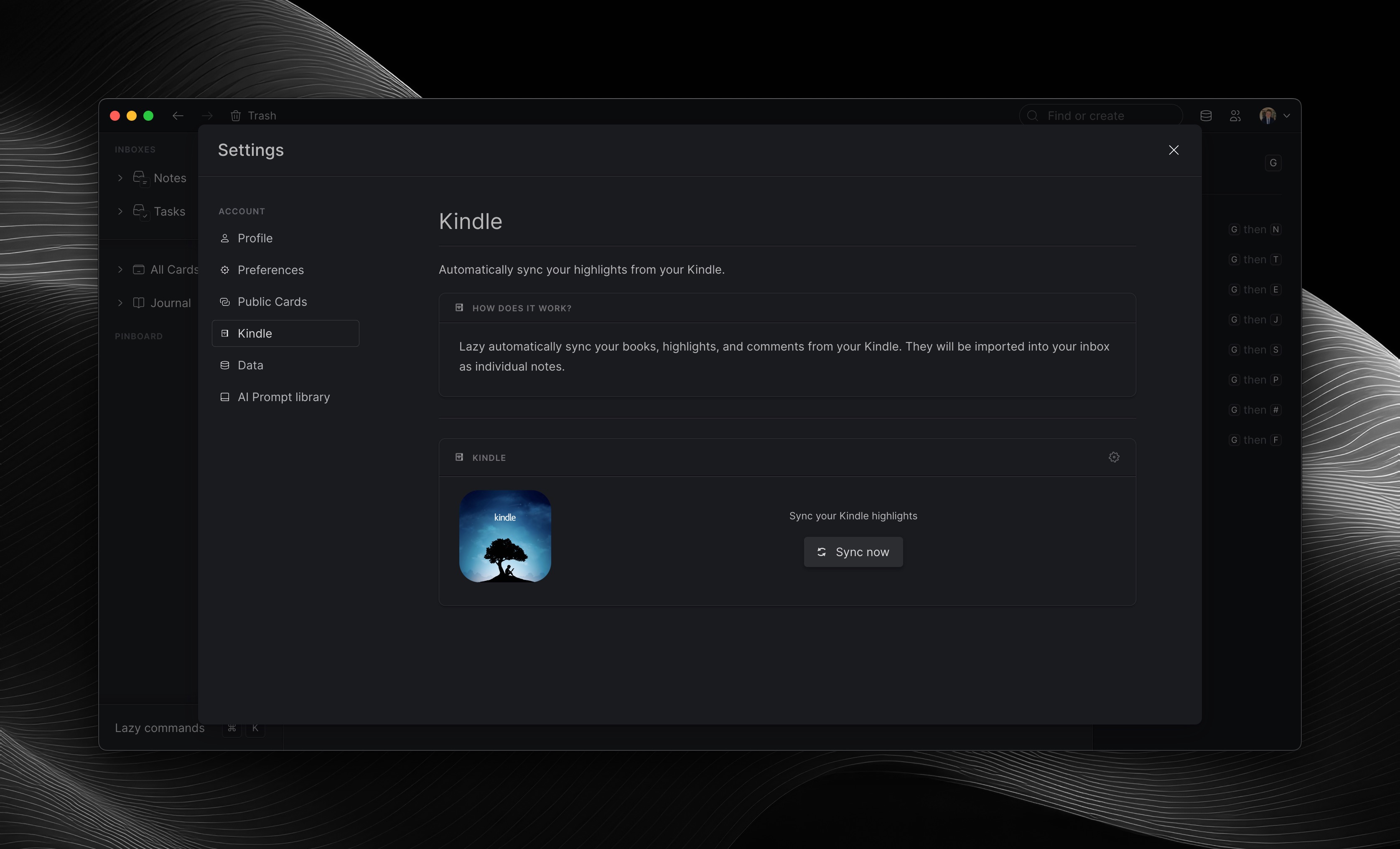
Then sign in with Amazon, in order to allow Lazy to sync your highlights and notes from your Kindle.
After signing in, Lazy will automatically create cards for each of the Kindle books which you’ve taken notes or highlighted content on top of, and import these notes and highlights in each card. If you’d like to sync any other books, simply click on the checkmarks next to them in the list.
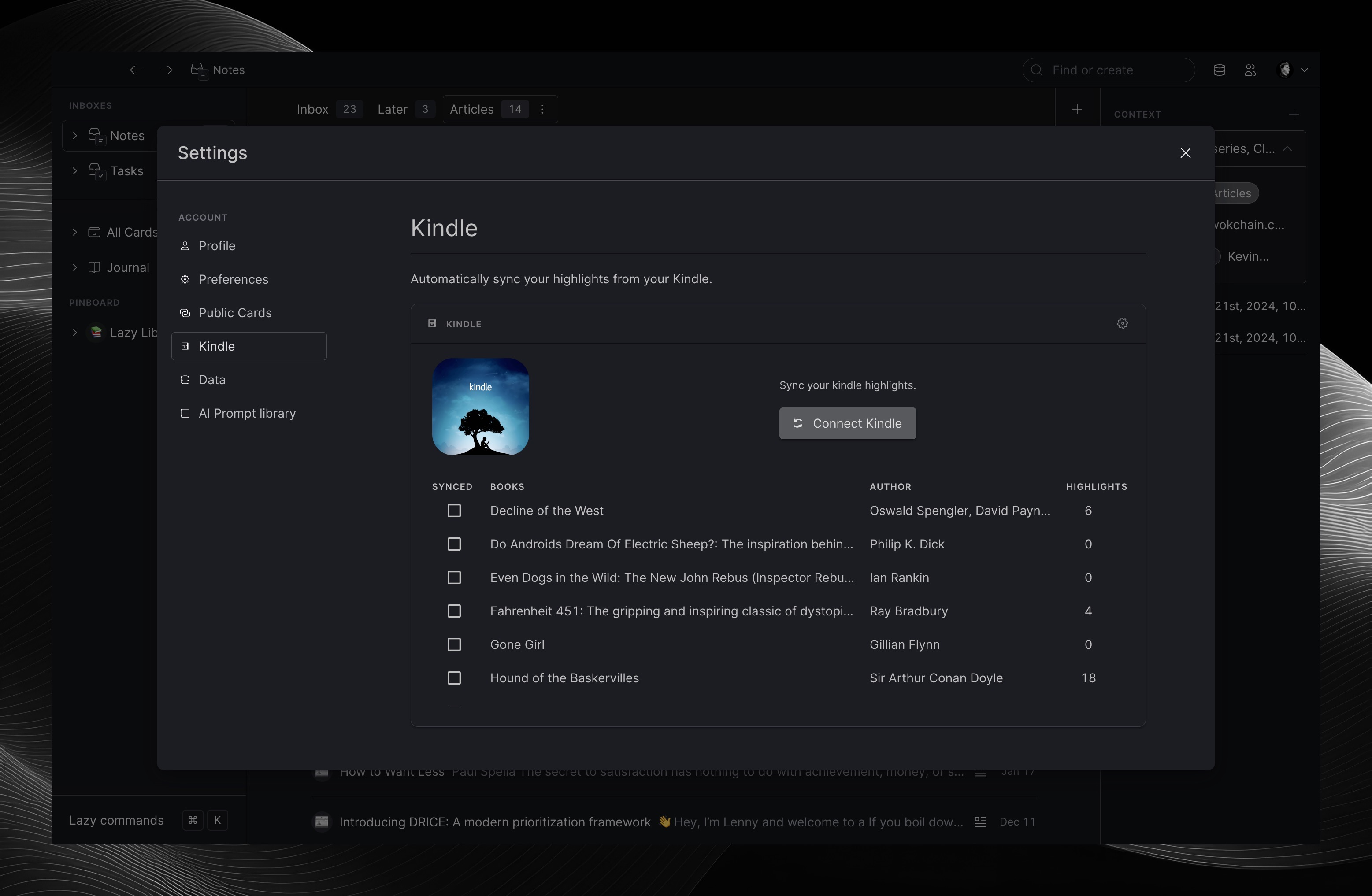
Lazy will automatically create a view of these cards called ‘📚 Books’ so you can keep track of them all in one place.
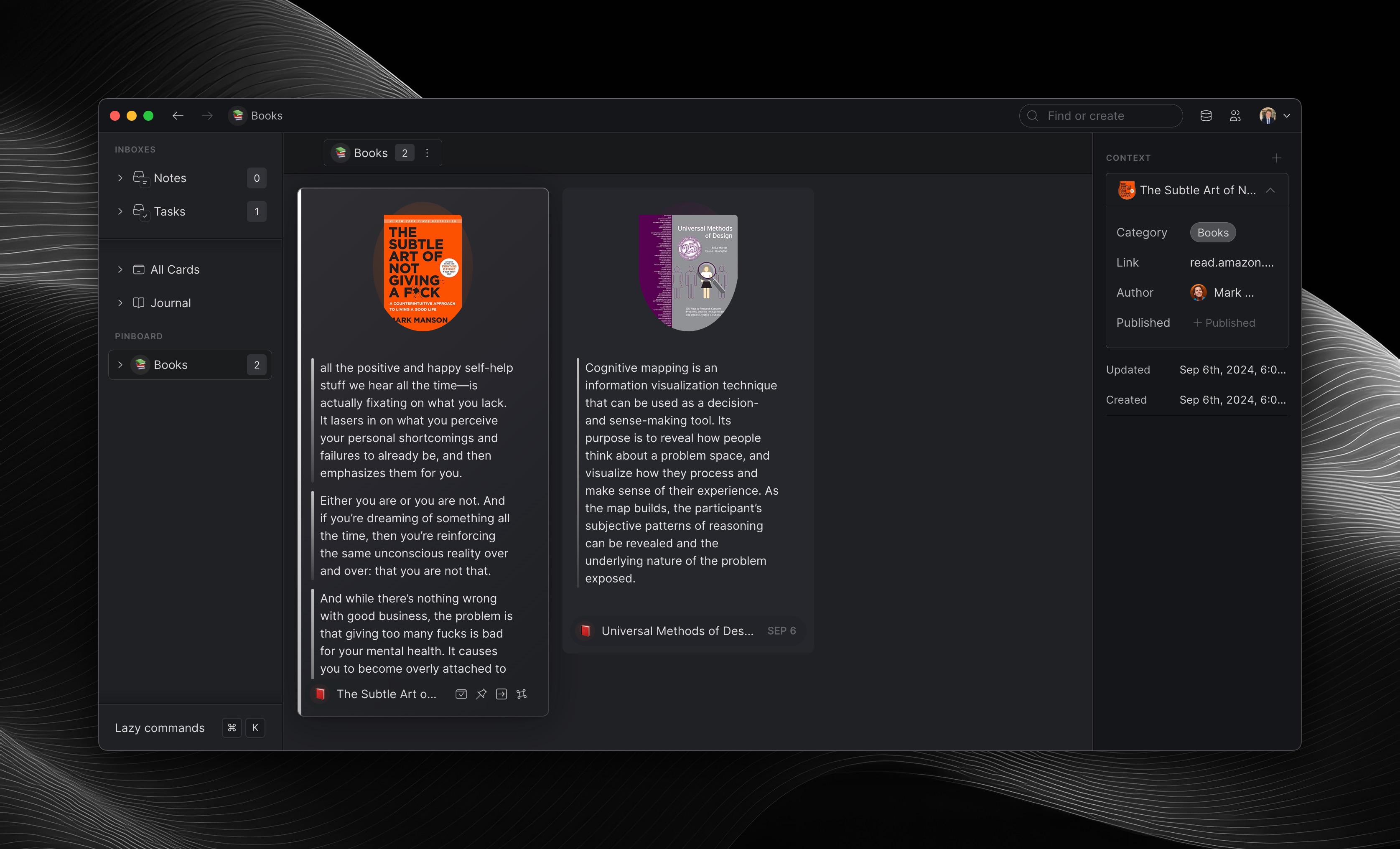
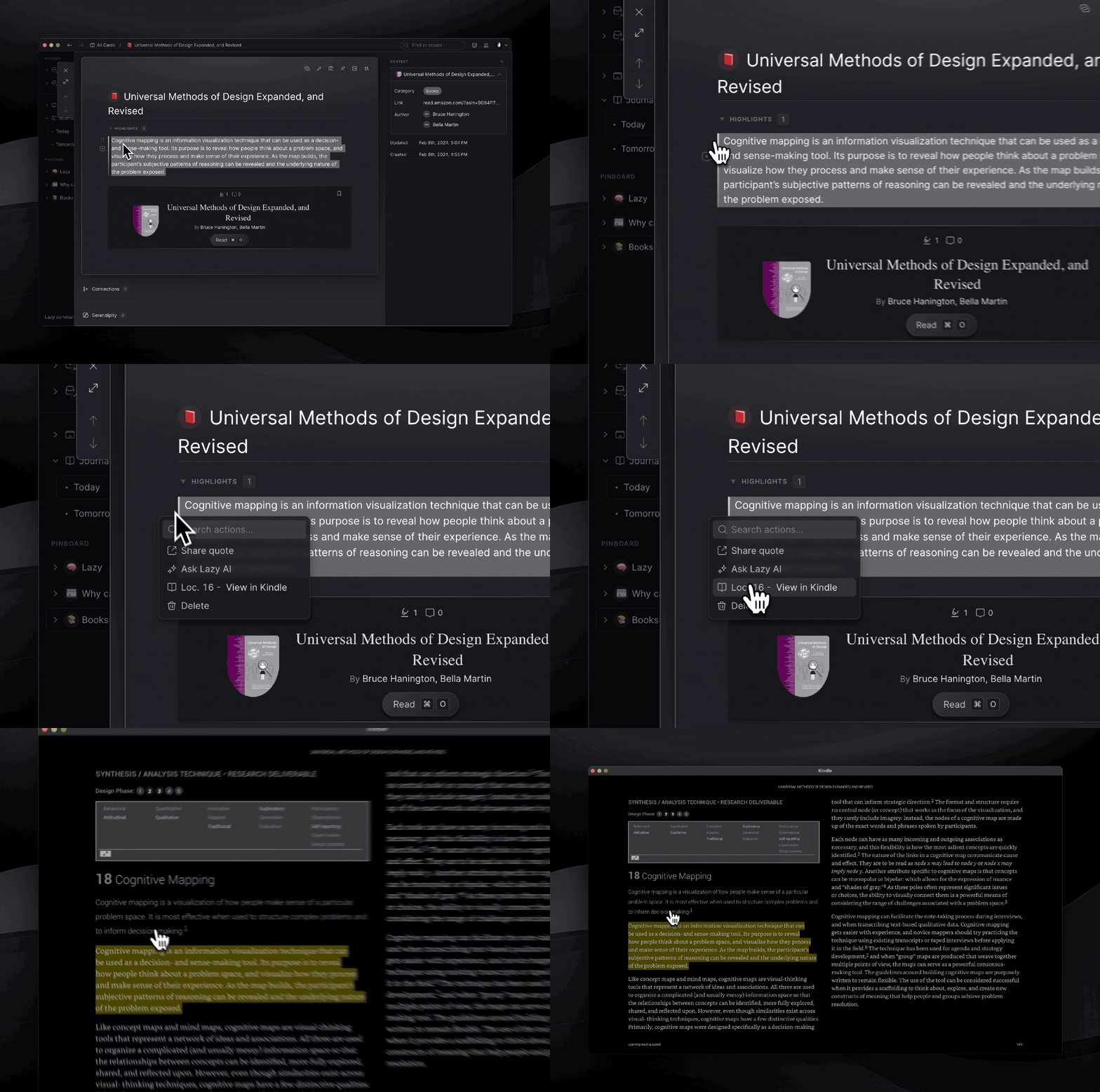
You can also easily access the location of your highlights by simply clicking on the block menu of a Highlight and then clicking on ‘View in Kindle’. This will then re-direct you to the Kindle Mac app.
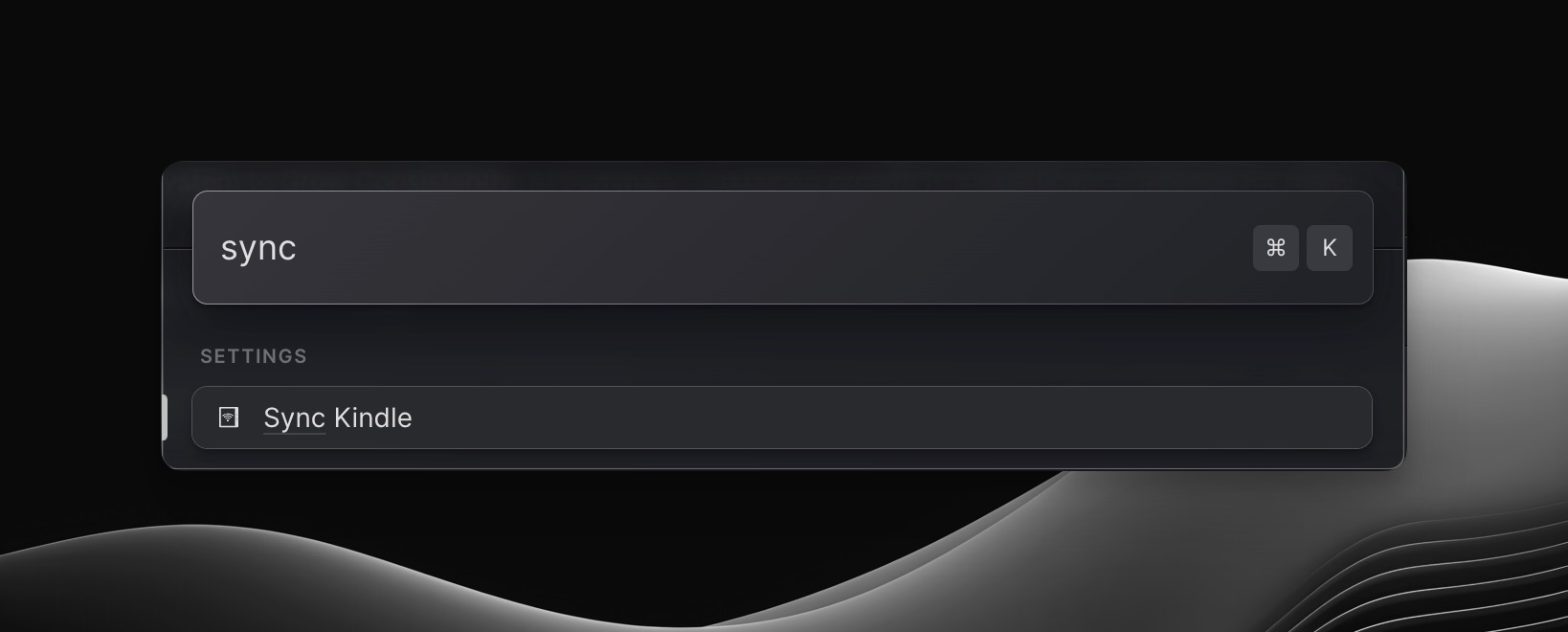
Lazy will continue to automatically sync your new highlights to these books daily, but if you’d like to speed this up, you can do ⌘+K and then type in ‘Sync Kindle’ to manually refresh it.